
Coordinates
How Northstar's coordinate system works and how the API scales coordinates to your viewport.
Northstar sees a screenshot and decides where to act. Internally, it always thinks in a fixed 0–999 grid — regardless of the actual screen resolution. The API can scale these to pixel coordinates for you, depending on which API you use.
The 0–999 grid
Section titled “The 0–999 grid”Every coordinate Northstar outputs is a point on this grid, overlaid on the screen:
The model says “click at (500, 500)” meaning “click in the center” — whether the actual screen is 500px wide or 3840px wide.
How scaling works
Section titled “How scaling works”When you use the Responses API or Tasks with the computer_use tool, the API converts Northstar’s 0–999 coordinates to pixel coordinates matching your viewport:
pixel_x = model_x × (display_width − 1) / 999pixel_y = model_y × (display_height − 1) / 999The model outputs (500, 500). Here’s where that maps to at three different viewport sizes:
Same model output, same logical position (center of screen), different pixel values. The API does the math — you just pass action.x and action.y directly to computer.click().
Which API scales coordinates?
Section titled “Which API scales coordinates?”| API | Coordinate scaling | What you receive |
|---|---|---|
Responses API (with computer_use tool) | Scaled to display_width × display_height | Pixel coordinates — pass directly to click() |
| Tasks | Handled automatically | You don’t interact with coordinates |
| Chat Completions | No scaling | Raw 0–999 model output |
| Computers API (direct control) | N/A — you provide the coordinates | Whatever you send |
Responses API
Section titled “Responses API”When you include a computer_use tool, the API scales coordinates before returning them:
response = client.responses.create(    model="tzafon.northstar-cua-fast",    input=[{        "role": "user",        "content": [            {"type": "input_text", "text": "Click the search button"},            {"type": "input_image", "image_url": screenshot_url, "detail": "auto"},        ],    }],    tools=[{        "type": "computer_use",        "display_width": 1280,     # ← tells the API your viewport size        "display_height": 720,        "environment": "desktop",    }],)
for item in response.output:    if item.type == "computer_call":        # These are pixel coordinates, ready to use        computer.click(item.action.x, item.action.y)
const response = await client.responses.create({ model: "tzafon.northstar-cua-fast", input: [{ role: "user", content: [ { type: "input_text", text: "Click the search button" }, { type: "input_image", image_url: screenshotUrl, detail: "auto" }, ], }], tools: [{ type: "computer_use", display_width: 1280, // ← tells the API your viewport size display_height: 720, environment: "desktop", }],});
for (const item of response.output ?? []) { if (item.type === "computer_call") { // These are pixel coordinates, ready to use await client.computers.click(id, { x: item.action!.x!, y: item.action!.y! }); }}Chat Completions
Section titled “Chat Completions”The Chat Completions API does not scale coordinates — you receive raw model output and handle the conversion yourself. You need two things: a system prompt template and a scaling function.
System prompt template
Section titled “System prompt template”Add this to your system prompt, replacing the viewport dimensions with your own:
You are controlling a computer through screenshots and actions.
Screen information:- Viewport size: {viewport_width}x{viewport_height} pixels.- Coordinates range from (0,0) at the top-left to (999,999) at the bottom-right.- All coordinate values must be integers between 0 and 999 inclusive.
When clicking or interacting with elements:- Look at the screenshot to find the element's position.- Return coordinates in the 0-999 range. They will be automatically scaled to the actual viewport.- Click elements in their CENTER, not on edges.
Scaling code
Section titled “Scaling code”Convert the model’s 0–999 coordinates back to pixel coordinates:
def scale_coordinates(    model_x: int, model_y: int,    viewport_width: int, viewport_height: int,) -> tuple[int, int]:    """Convert model coordinates (0-999) to actual pixel coordinates."""    x = int(model_x * (viewport_width - 1) / 999)    y = int(model_y * (viewport_height - 1) / 999)    return x, y
# Example: model says click (500, 500) on a 1280x720 viewportx, y = scale_coordinates(500, 500, 1280, 720)  # → (640, 360)
function scaleCoordinates( modelX: number, modelY: number, viewportWidth: number, viewportHeight: number,): [number, number] { /** Convert model coordinates (0-999) to actual pixel coordinates. */ const x = Math.floor(modelX * (viewportWidth - 1) / 999); const y = Math.floor(modelY * (viewportHeight - 1) / 999); return [x, y];}
// Example: model says click (500, 500) on a 1280x720 viewportconst [x, y] = scaleCoordinates(500, 500, 1280, 720); // → [640, 360]Full example
Section titled “Full example”Putting it together with the OpenAI SDK:
from openai import OpenAIimport json
client = OpenAI(    base_url="https://api.tzafon.ai/v1",    api_key="sk_your_api_key_here",)
VIEWPORT_WIDTH = 1280VIEWPORT_HEIGHT = 720
SYSTEM_PROMPT = f"""\You are controlling a computer through screenshots and actions.
Screen information:- Viewport size: {VIEWPORT_WIDTH}x{VIEWPORT_HEIGHT} pixels.- Coordinates range from (0,0) at the top-left to (999,999) at the bottom-right.- All coordinate values must be integers between 0 and 999 inclusive.
When clicking or interacting with elements:- Look at the screenshot to find the element's position.- Return coordinates in the 0-999 range. They will be automatically scaled to the actual viewport.- Click elements in their CENTER, not on edges."""
result = client.chat.completions.create(    model="tzafon.northstar-cua-fast",    messages=[        {"role": "system", "content": SYSTEM_PROMPT},        {            "role": "user",            "content": [                {"type": "text", "text": "Click the search button"},                {"type": "image_url", "image_url": {"url": screenshot_url}},            ],        },    ],    tools=[        {            "type": "function",            "function": {                "name": "click",                "description": "Click at screen coordinates (0-999 range).",                "parameters": {                    "type": "object",                    "properties": {                        "x": {"type": "integer", "description": "X position (0=left edge, 999=right edge)"},                        "y": {"type": "integer", "description": "Y position (0=top edge, 999=bottom edge)"},                    },                    "required": ["x", "y"],                },            },        },    ],)
for choice in result.choices:    for tool_call in choice.message.tool_calls or []:        args = json.loads(tool_call.function.arguments)        pixel_x, pixel_y = scale_coordinates(            args["x"], args["y"], VIEWPORT_WIDTH, VIEWPORT_HEIGHT,        )        print(f"Click at pixel ({pixel_x}, {pixel_y})")
import OpenAI from "openai";
const client = new OpenAI({ baseURL: "https://api.tzafon.ai/v1", apiKey: "sk_your_api_key_here",});
const VIEWPORT_WIDTH = 1280;const VIEWPORT_HEIGHT = 720;
const SYSTEM_PROMPT = `You are controlling a computer through screenshots and actions.
Screen information:- Viewport size: ${VIEWPORT_WIDTH}x${VIEWPORT_HEIGHT} pixels.- Coordinates range from (0,0) at the top-left to (999,999) at the bottom-right.- All coordinate values must be integers between 0 and 999 inclusive.
When clicking or interacting with elements:- Look at the screenshot to find the element's position.- Return coordinates in the 0-999 range. They will be automatically scaled to the actual viewport.- Click elements in their CENTER, not on edges.`;
const result = await client.chat.completions.create({ model: "tzafon.northstar-cua-fast", messages: [ { role: "system", content: SYSTEM_PROMPT }, { role: "user", content: [ { type: "text", text: "Click the search button" }, { type: "image_url", image_url: { url: screenshotUrl } }, ], }, ], tools: [ { type: "function", function: { name: "click", description: "Click at screen coordinates (0-999 range).", parameters: { type: "object", properties: { x: { type: "integer", description: "X position (0=left edge, 999=right edge)" }, y: { type: "integer", description: "Y position (0=top edge, 999=bottom edge)" }, }, required: ["x", "y"], }, }, }, ],});
for (const choice of result.choices) { for (const toolCall of choice.message.tool_calls ?? []) { const args = JSON.parse(toolCall.function.arguments); const [pixelX, pixelY] = scaleCoordinates( args.x, args.y, VIEWPORT_WIDTH, VIEWPORT_HEIGHT, ); console.log(`Click at pixel (${pixelX}, ${pixelY})`); }}Worked example
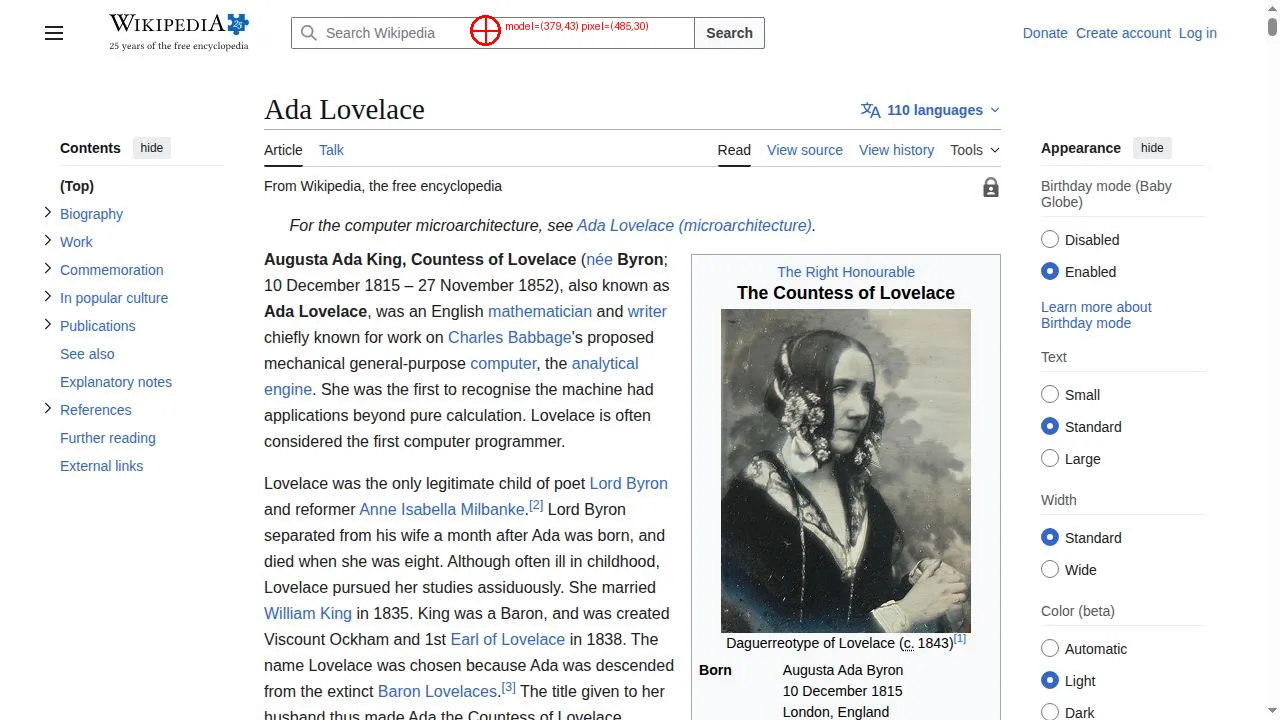
Section titled “Worked example”Here’s coordinate scaling in action. We ask Northstar to click the search bar on a Wikipedia page. The model responds with (379, 43) in the 0–999 grid, which scales to pixel (485, 30) on a 1280×720 viewport:
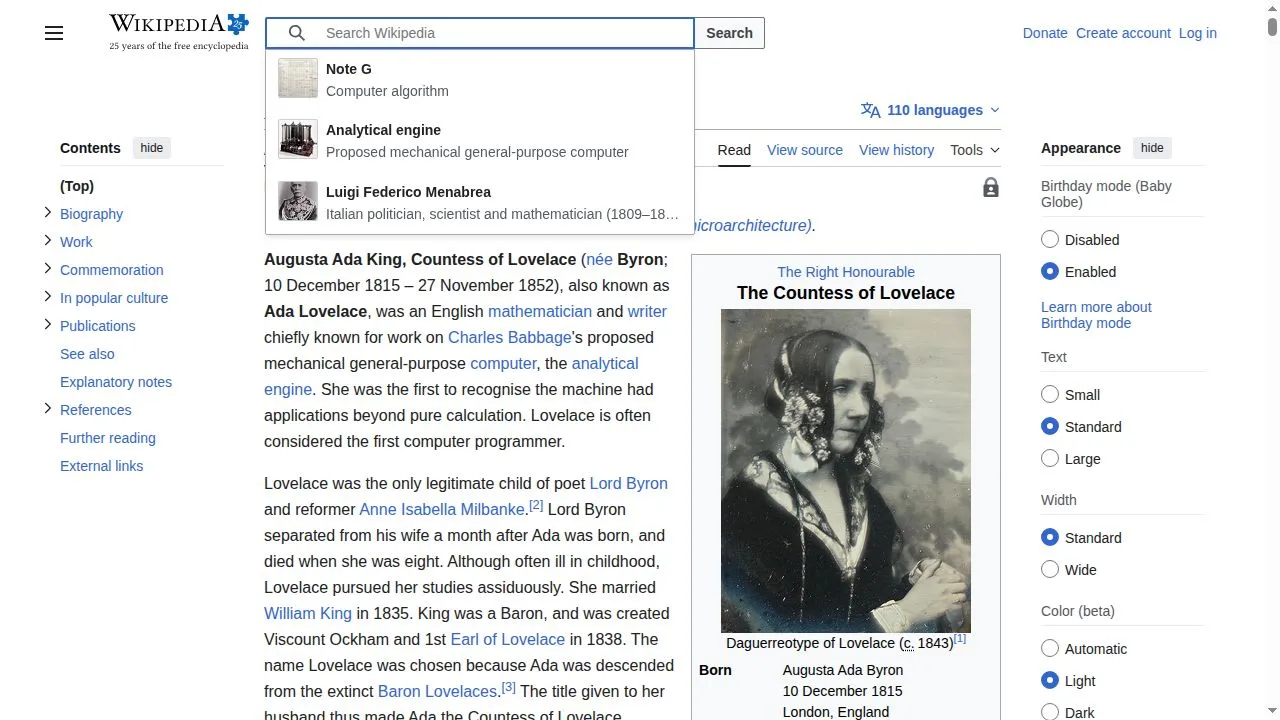
After clicking at the scaled pixel coordinates, the search bar is focused:
Full source code for this example
from tzafon import Lightconefrom PIL import Image, ImageDrawimport base64import jsonimport io
VIEWPORT_WIDTH = 1280VIEWPORT_HEIGHT = 720
SYSTEM_PROMPT = f"""\You are controlling a computer via screenshots and actions.
Screen information:- Viewport size: {VIEWPORT_WIDTH}x{VIEWPORT_HEIGHT} pixels.- Coordinates range from (0,0) at the top-left to (999,999) at the bottom-right.- All coordinate values must be integers between 0 and 999 inclusive.
When you want to click on something:- Look at the screenshot to find the element.- Return the coordinates in the 0-999 range. They will be scaled to actual pixels.- Click elements in their CENTER, not on edges.
Respond with JSON: {{"action": "click", "coordinate": [x, y], "reason": "..."}}"""

def scale_coordinates(model_x, model_y, viewport_width, viewport_height):    """Convert model coordinates (0-999) to actual pixel coordinates."""    x = int(model_x * (viewport_width - 1) / 999)    y = int(model_y * (viewport_height - 1) / 999)    return x, y

def annotate_screenshot(image_bytes, pixel_x, pixel_y, model_x, model_y, output_path):    """Draw a red crosshair + label on the screenshot to visualize the click."""    img = Image.open(io.BytesIO(image_bytes)).convert("RGB")    draw = ImageDraw.Draw(img)
    r = 15    draw.ellipse((pixel_x - r, pixel_y - r, pixel_x + r, pixel_y + r), outline="red", width=3)    draw.line((pixel_x - r, pixel_y, pixel_x + r, pixel_y), fill="red", width=2)    draw.line((pixel_x, pixel_y - r, pixel_x, pixel_y + r), fill="red", width=2)
    label = f"model=({model_x},{model_y}) pixel=({pixel_x},{pixel_y})"    draw.text((pixel_x + r + 5, pixel_y - 10), label, fill="red")    img.save(output_path)

client = Lightcone()
with client.computer.create(kind="browser") as computer:    computer.navigate("https://en.wikipedia.org/wiki/Ada_Lovelace")    computer.wait(3)
    # Take a screenshot    result = computer.screenshot()    screenshot_url = computer.get_screenshot_url(result)
    # Download for local annotation    import urllib.request    with urllib.request.urlopen(screenshot_url) as resp:        screenshot_bytes = resp.read()
    # Ask the model where to click    response = client.responses.create(        model="tzafon.northstar-cua-fast",        instructions=SYSTEM_PROMPT,        input=[{            "role": "user",            "content": [                {"type": "input_text", "text": "Click the search bar."},                {"type": "input_image", "image_url": screenshot_url, "detail": "auto"},            ],        }],    )
    # Parse the model's response    for item in response.output:        if item.type == "message":            reply = json.loads(item.content[0].text)            break
    model_x, model_y = reply["coordinate"]    pixel_x, pixel_y = scale_coordinates(model_x, model_y, VIEWPORT_WIDTH, VIEWPORT_HEIGHT)
    print(f"Model: ({model_x}, {model_y}) → Pixel: ({pixel_x}, {pixel_y})")
    # Annotate the screenshot with a red crosshair    annotate_screenshot(screenshot_bytes, pixel_x, pixel_y, model_x, model_y, "click_debug.png")
    # Click and capture the result    computer.click(pixel_x, pixel_y)    computer.wait(2)
Run it yourself: coordinate_scaling.py
Direct computer control
Section titled “Direct computer control”When using the Computers API directly (no model), coordinates are raw pixel positions — you decide where to click:
# You provide pixel coordinates directlycomputer.click(640, 360) # center of a 1280x720 screencomputer.scroll(0, 300, 640, 400) # scroll down at positionawait client.computers.click(id, { x: 640, y: 360 });await client.computers.scroll(id, { dx: 0, dy: 300, x: 640, y: 400 });There’s no scaling involved — what you send is what happens.
See also
Section titled “See also”- Responses API — build a computer-use loop with automatic coordinate scaling
- Computer-use loop — full implementation guide with action dispatch
- Computers — direct control with pixel coordinates
- Chat Completions — text generation (no coordinate scaling)